
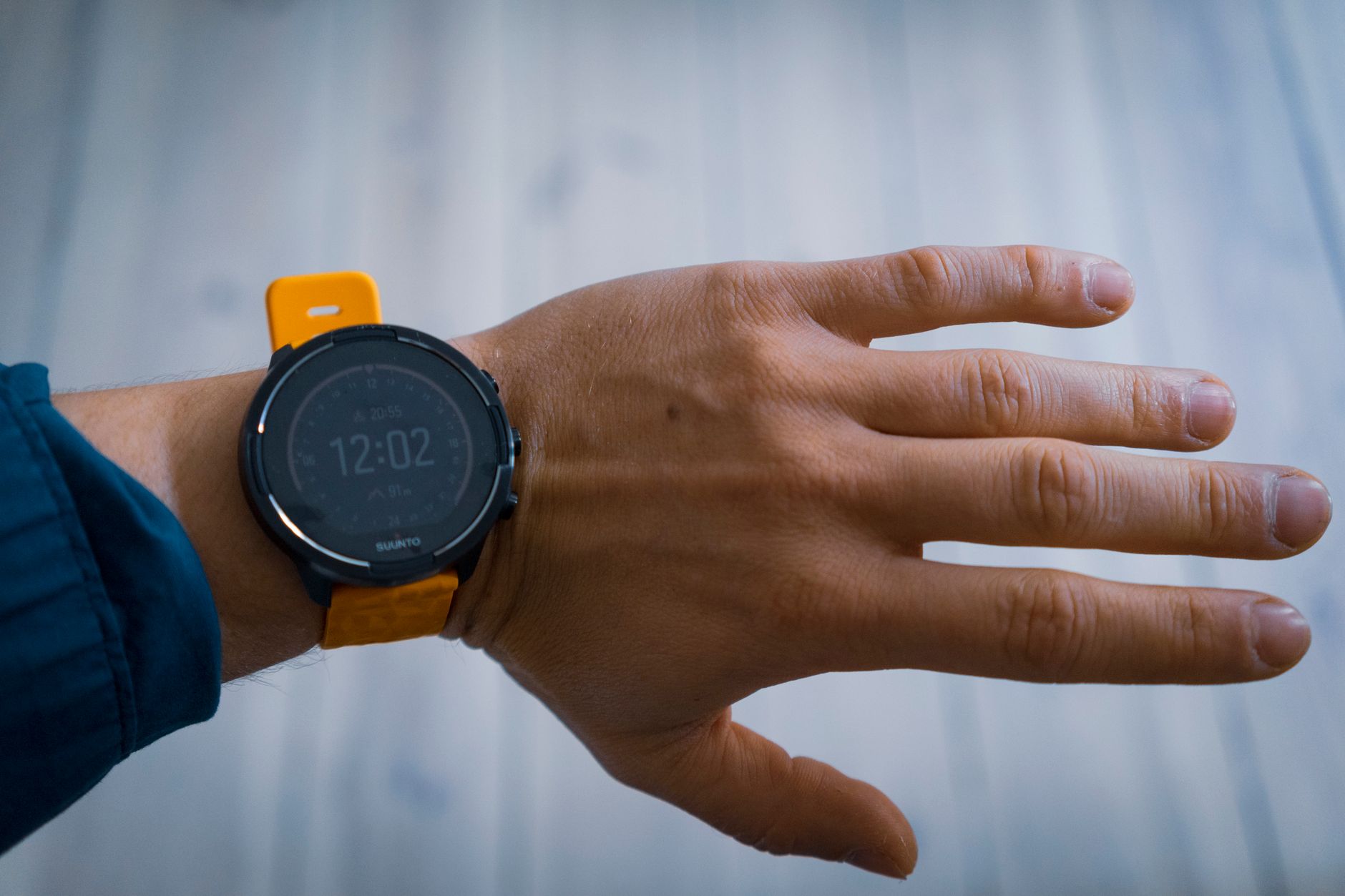
Garmin Intensity Minutes are a metric designed to measure how intensely you exercise during your workouts, tracking time spent at elevated heart rate zones rather than just total exercise minutes. When your watch records an activity—whether running, cycling, or any cardio—it’s simultaneously monitoring your heart rate and calculating how many of those minutes fall into moderate to vigorous intensity zones. For example, a runner who jogs for 30 minutes at a conversational pace might earn 5 Intensity Minutes, while the same runner doing 20 minutes of tempo work could earn 15 Intensity Minutes, despite spending less total time exercising.
This metric fills a gap in basic fitness tracking by acknowledging what exercise scientists have long understood: not all exercise time carries the same physiological benefit. Garmin’s system aligns with health guidelines like those from the American Heart Association, which recommends 150 minutes of moderate-intensity aerobic activity or 75 minutes of vigorous activity per week. Understanding how Garmin calculates these minutes and what they actually mean for your training is essential if you want to use your watch data to meaningfully assess fitness progress.
Table of Contents
- How Does Garmin Calculate Intensity Minutes?
- The Difference Between Intensity Minutes, Total Time, and Training Load
- Using Intensity Minutes to Track Training Progress
- Comparing Intensity Minutes Across Different Devices and Apps
- Common Accuracy Problems and Troubleshooting
- Intensity Minutes and Training Zones Beyond the Basics
- The Future of Intensity Metrics and What’s Coming
- Conclusion
- Frequently Asked Questions
How Does Garmin Calculate Intensity Minutes?
garmin determines Intensity Minutes by analyzing your heart rate data in real-time during recorded activities. The system uses your personal heart rate zones—typically calculated from your maximum heart rate and resting heart rate—to categorize each second of your workout. Specifically, time spent in Zone 3 (moderate intensity) and above counts toward your daily Intensity Minutes total. This means that leisurely walks or easy recovery runs, which keep you in Zone 1 or 2, don’t accumulate Intensity Minutes even though they’re still valuable for your fitness. The accuracy of this calculation depends on three factors: accurate zone settings, reliable heart rate data from your watch, and consistent wear.
If your maximum heart rate is set incorrectly in your device, your zones will be misaligned, causing the watch to overestimate or underestimate intensity. For instance, if you set your max heart rate to 180 bpm but it’s actually 190 bpm, your moderate zone will be artificially low, and you’ll accumulate more Intensity Minutes at lower actual efforts. Wearing your watch properly—snug but not tight on your wrist—matters significantly because a loose watch or one worn over long sleeves can produce spotty heart rate readings. Garmin also applies what it calls “heart rate drift” compensation during activities, meaning it adjusts for physiological changes like increased heart rate from fatigue or heat as you exercise longer. This prevents a three-hour trail run from inflating your Intensity Minutes as your heart rate naturally creeps up. However, this sophistication can sometimes create unexpected results if you’re comparing back-to-back workouts with different environmental conditions or recovery states.

The Difference Between Intensity Minutes, Total Time, and Training Load
Many runners confuse Intensity Minutes with other Garmin metrics, leading to misunderstandings about what their data represents. Your total activity time—say, 45 minutes of running—is simply how long you exercised. Your Intensity Minutes—perhaps 30 of those 45 minutes—reflect only the portion at intensity. Training Load, meanwhile, is a separate Garmin metric that combines duration, intensity, and heart rate reserve to estimate overall training stress on your body, measured in Training Stress Score (TSS) points. A 30-minute tempo run might give you 30 Intensity Minutes and a Training Load of 45 points, while a 60-minute easy run might give you only 8 Intensity Minutes but a Training Load of 25 points because you’re running longer and accumulating fatigue. A critical limitation: Intensity Minutes only consider heart rate, not effort.
A runner recovering from illness might hit moderate heart rate zones due to deconditioning while doing what feels like easy running. That easy-feeling run would still accumulate full Intensity Minutes, potentially leading to a false sense of training intensity. Conversely, a very fit runner might maintain a lower heart rate during tempo work than another runner at the same pace, artificially reducing their Intensity Minutes total. This is why relying solely on Intensity Minutes to gauge your training quality is dangerous—context from perceived exertion, pace, and other metrics is essential. Another warning: if you wear your watch inconsistently or don’t record activities, your Intensity Minutes won’t reflect your actual training. Many runners do short warm-up runs or supplemental activities (like treadmill work) without recording them, creating gaps in their data. Over a month, these untracked sessions could represent 50+ missing Intensity Minutes, skewing your weekly average.
Using Intensity Minutes to Track Training Progress
Garmin displays your Intensity minutes as a weekly total and compares it to your personalized weekly goal, which the watch recommends based on your activity level and recent history. For many runners, seeing a clear visual goal—”You need 45 more Intensity Minutes this week to hit 150″—provides useful motivation and structure. Over months and years, tracking Intensity Minutes trends can reveal whether your training is genuinely becoming more intense or if you’re drifting toward easier runs. A practical example: suppose you run six days a week and notice your weekly Intensity Minutes have dropped from 180 to 120 over two months, with your total running time unchanged. This might signal that you’ve shifted to a higher volume of easy running or that your fitness has declined (requiring less intensity to hit your target pace).
Armed with this information, you could intentionally add speed work, adjust your easy pace targets, or assess whether overtraining or poor recovery is the culprit. The metric becomes a diagnostic tool, not just a reward tracker. However, Intensity Minutes are most useful in combination with other data. A runner who racks up 200 Intensity Minutes in one week by doing high-intensity intervals every day is overtraining and at risk of injury or burnout, even though their Intensity Minutes metric looks impressive. Intensity Minutes don’t capture recovery, cumulative fatigue, or whether you’re following a periodized training plan. Use them as one data point among pace zones, weekly mileage, heart rate variability, and subjective feel.

Comparing Intensity Minutes Across Different Devices and Apps
Garmin’s Intensity Minutes calculation is proprietary and differs from similar metrics on competing devices. Apple Watch tracks “Workout Minutes” and “Stand Minutes,” which measure movement rather than intensity. Fitbit uses “Active Zone Minutes,” which is roughly equivalent to Garmin’s Intensity Minutes but may use slightly different zone thresholds. If you’ve worn multiple brands or synced data to third-party apps like Strava or TrainingPeaks, you’ll notice the totals don’t match. One runner’s 45 Intensity Minutes on Garmin might correspond to 38 Active Zone Minutes on a Fitbit simply because the devices define zones or threshold calculations differently. The trade-off with Garmin’s system is that it’s stricter than some alternatives.
Garmin requires you to sustain moderate intensity to accumulate minutes, while some competitors count brief spikes or use lower thresholds. This means Garmin users often see lower Intensity Minute totals than Apple Watch users who did the same workout. For cross-device comparisons or if you’re migrating from another brand, expect your numbers to shift, and don’t assume one device is inaccurate—they’re just using different definitions. Syncing Garmin data to third-party apps compounds this issue. Strava doesn’t use Intensity Minutes; it relies on estimated relative effort derived from pace and heartrate, which creates yet another metric to track. If you’re using your Garmin data to log training on multiple platforms, keep in mind that each platform may present different “intensity” metrics, and they won’t align. Your Garmin watch is the authoritative source for Garmin’s Intensity Minutes; external platforms won’t perfectly replicate the calculation.
Common Accuracy Problems and Troubleshooting
Garmin Intensity Minutes accuracy problems are widespread but often go unrecognized. Poor heart rate sensor contact is the leading culprit. Optical heart rate sensors on wrist-worn devices rely on consistent skin contact and can’t see through dark tattoos reliably, leading some runners to report wildly inaccurate zones. If your Intensity Minutes suddenly spike or plummet without changes in your training, check your watch’s wrist fit first—loosen and retighten it or move it slightly up your arm if the sensor isn’t reading properly. Another common issue: maximum heart rate estimates are often incorrect. Garmin estimates max heart rate using age (typically 220 minus age) as a starting point, which can be off by 20 or more bpm for any individual.
If you’ve ever maxed out in a high-intensity effort and seen what your real peak was, it’s worth manually updating your profile to get more accurate zones. A second problem arises from sudden lifestyle or fitness changes. If you’re traveling to high altitude, haven’t slept well, or are fighting off illness, your heart rate will be elevated across all efforts, artificially inflating your Intensity Minutes. This is why some runners report “easy runs” suddenly producing way more Intensity Minutes during travel or stress—it’s a real physiological response, not an error, but it can mislead you about your actual training intensity. Swimming is a notorious problem. Most Garmin watches can’t measure heart rate accurately in water, so if you swim and wear your watch, it may record the activity but give you zero Intensity Minutes because the heart rate signal is lost. This is a hardware limitation, not a settings issue, and affects virtually all optical heart rate watches in the water.

Intensity Minutes and Training Zones Beyond the Basics
Many runners don’t realize that Garmin’s zone system can be customized beyond automatic calculations. You can manually set your zones if you’ve done a proper lactate threshold test or VO2 max test. This is where structured training plans really diverge from casual running. If you’re following a coach-prescribed plan with specific zone targets (e.g., “do your long run in Zone 2, keep it under Zone 3”), your Intensity Minutes should reflect whether you’re adhering to those zones.
An example: a runner following base building might do a six-week block of 80% Zone 2 and 20% Zone 3 running, deliberately keeping Intensity Minutes low. During this phase, weekly Intensity Minutes might drop to just 40-60, which looks like reduced intensity on a graph but is actually exactly what the training plan intended. Not knowing this context, the runner might panic and add unscheduled speed work, sabotaging the training plan’s goals. The metric is working correctly; the problem is misinterpreting the data.
The Future of Intensity Metrics and What’s Coming
Garmin has been gradually sophisticating its metrics over the years, and newer watch models incorporate additional data points like training load, recovery time, and body battery status alongside Intensity Minutes. The future likely involves tighter integration between multiple metrics—your watch not just telling you “you earned 120 Intensity Minutes this week” but also “you’ve only recovered to 60% capacity, so hold back on intensity this week.” Some research suggests that combining heart rate variability data with intensity metrics provides better insights into training readiness than Intensity Minutes alone. As wearable sensors improve, expect more granular data.
Next-generation optical sensors may offer better water resistance and accuracy across different skin tones and tattoo patterns. In the meantime, runners should view Intensity Minutes as a useful but imperfect proxy for training quality, one that works best when interpreted alongside other data. The metric’s main value is consistency—tracking the same metric over months and years shows trends that reflect genuine changes in your fitness and effort patterns, even if the absolute numbers aren’t perfectly calibrated to exercise science.
Conclusion
Garmin Intensity Minutes measure the portion of your exercise time spent at moderate to vigorous intensity, calculated from your heart rate zones. They provide useful feedback for runners wanting to ensure they’re training hard enough or tracking compliance with health guidelines recommending 150 minutes of moderate weekly activity. However, they’re not a complete picture of training quality—accuracy depends on proper watch fit, correct zone settings, and realistic interpretation of what the numbers mean in context with your overall training plan, fitness level, and recovery state.
To get the most from Intensity Minutes, treat them as one piece of a larger puzzle. Verify your heart rate zones, check your watch fit, and interpret sudden changes by considering whether your training, health, or environment has actually shifted. Used this way, Intensity Minutes become a valuable coaching tool that keeps you aligned with evidence-based training principles.
Frequently Asked Questions
Why are my Intensity Minutes lower on my Garmin than my friend’s Apple Watch for the same run?
Garmin and Apple use different zone thresholds and calculations. Garmin’s system is typically stricter, requiring sustained moderate-to-vigorous intensity to earn minutes. Apple Watch may count briefer efforts or use lower thresholds, resulting in higher totals for the same activity.
Does walking count toward Intensity Minutes?
Only if you’re walking at a pace that elevates your heart rate into Zone 3 or higher, which is rare for casual walking but possible during very brisk hiking or power walking for fit individuals.
Can I manually edit my Intensity Minutes?
No, Garmin doesn’t allow manual editing of this metric. If you believe a workout was inaccurate, you can delete the activity record and re-record it, or adjust your zone settings to fix ongoing inaccuracies.
What if my watch shows zero Intensity Minutes for a workout I know was hard?
Check your watch fit and heart rate sensor contact. If the heart rate reading is poor or missing, no Intensity Minutes will be recorded. Swimming is a common cause because optical sensors don’t work underwater.
How do Intensity Minutes compare to running at a specific pace?
Pace and intensity don’t always align. A 7-minute mile for a beginner might be Zone 4 effort, while an elite runner at 5-minute miles stays in Zone 3. Intensity Minutes account for your individual physiology; pace doesn’t.
Should I try to maximize my Intensity Minutes every week?
No. Training plans typically prescribe lower Intensity Minutes during base-building phases and higher totals during racing or peak phases. Consistently maximizing Intensity Minutes can lead to overtraining and injury.
2 thoughts on “Garmin Intensity Minutes FAQs”
Comments are closed.