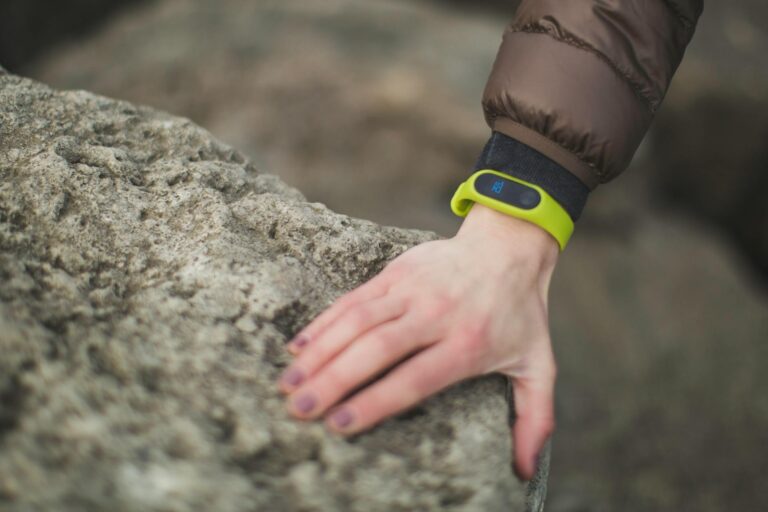
Wrong intensity minutes on your watch usually stem from miscalibrated personal metrics, outdated software, or incorrect heart rate zone settings. The most direct fix is to update your fitness profile with accurate height, weight, age, and resting heart rate—then restart the watch and let it recalibrate for 24 hours before drawing conclusions.
Many runners see intensity minute counts drop by 20 to 40 percent after doing this, discovering their watch had been inflating numbers based on stale data, not because the watch suddenly became “wrong,” but because it finally had the right baseline. If your watch says you burned intense minutes during an easy recovery run, or assigns intensity to periods when your heart rate barely elevated, the problem often goes deeper than outdated settings. Your watch measures intensity primarily through heart rate zones, and those zones depend on knowing your true resting heart rate and maximum heart rate—defaults are often estimates that work fine for some people but miss the mark for others.
Table of Contents
- What Causes Intensity Minute Miscount on Your Watch?
- How to Recalibrate Your Watch’s Heart Rate Zones
- The Role of Resting Heart Rate in Intensity Calculations
- Sensor Accuracy and Physical Factors That Distort Readings
- Software Updates and Syncing Issues
- When to Use Manual Heart Rate Zones Instead of Auto-Calculated Ones
- Choosing When to Trust Your Watch and When to Question It
- Conclusion
- Frequently Asked Questions
What Causes Intensity Minute Miscount on Your Watch?
Your watch calculates intensity minutes by tracking how long your heart rate stays in the “high intensity” or “cardio” zones. These zones are mathematical ranges based on your maximum heart rate, which the watch estimates from your age, weight, and fitness level. If any of these inputs are wrong, or if your resting heart rate has changed, the zone calculations shift—sometimes dramatically. A 40-year-old runner who inputs their age as 35 will have different heart rate zones than the actual person, meaning easy runs might register as intense and tough efforts might register as moderate. The second major cause is sensor accuracy. Wrist-worn heart rate sensors use LED light to measure blood flow, and they’re surprisingly vulnerable to loose bands, sweat, movement, and even tattoos.
If your watch’s optical sensor isn’t reading your heart rate accurately, it can’t judge intensity correctly. Some runners report their watch spikes to 180 bpm while running at easy pace—an obvious sensor error that inflates intensity minutes artificially. Cleaning the sensor and ensuring a snug fit often fixes this immediately. Software bugs and delays in syncing are less common but do happen. Watch manufacturers occasionally release firmware updates that change how intensity is calculated, and if your update installs mid-activity or doesn’t sync properly with the phone app, you may see conflicting numbers. A runner might see 45 intensity minutes on the watch but 32 on the app, indicating the phone hasn’t yet received the corrected data.

How to Recalibrate Your Watch’s Heart Rate Zones
Start by opening your watch’s settings and updating your fitness profile: height (in exact inches or centimeters), weight, age, and gender. Then find the resting heart rate setting and update it to your actual resting rate. Your true resting heart rate is your pulse first thing in the morning, before you get out of bed—measure it three days in a row and average the results. Many people discover their resting rate has dropped (a sign of improved fitness) or crept up (a sign of stress or overtraining), and the watch has no way of knowing this changed unless you tell it. After updating these fields, some watches (Garmin and Apple Watch included) let you manually input your maximum heart rate if you know it—this is more accurate than letting the watch estimate it from age alone.
Maximum heart rate varies by individual; two 45-year-olds can have max rates differing by 20 bpm. If you’ve done a genuine max effort recently (a hard interval workout where your heart rate topped out), look at your peak and input that number. Apple Watch and Garmin watches both offer manual entry in their fitness settings. One limitation: if your watch relies on your phone app for zone calculations, updating the watch’s settings alone won’t work—you must also update the phone app, then force a sync. Some watches sync automatically when you’re in range; others require manual sync. Allow 24 hours after any profile change before trusting the intensity minute counts again; the watch needs time to establish a baseline with the new zones.
The Role of Resting Heart Rate in Intensity Calculations
Resting heart rate is the hidden foundation of intensity calculation. Your watch uses it to estimate your maximum heart rate more accurately than age alone can. The Karvonen formula, used by many fitness devices, calculates your heart rate reserve (max rate minus resting rate) and then defines zones as percentages of that reserve. If your resting rate is set to 60 bpm when you actually rest at 50 bpm, your zones shift upward—a pace that should register as aerobic now registers as moderate, and moderate efforts drop into easy zones. The result is that genuine hard efforts get overcounted while recovery runs disappear from your intensity minutes. A concrete example: a runner who trained while their resting rate was genuinely 52 bpm should have input 52 in their watch.
Instead, they left the default of 60. During a tempo run where their heart rate climbed to 162 bpm—objectively close to their max—the watch calculated their intensity percentage as lower than it should be, because it was using an artificially high floor. Once they corrected the resting rate to 52, the same 162 bpm spike showed as true high intensity, and their tempo runs finally counted. Measuring resting heart rate accurately is harder than it sounds. Caffeine, stress, sleep debt, and even room temperature affect it. Morning rate can vary by 10 bpm depending on the day. Take measurements for a week and use the lowest value you see, not the average—this gives you the most conservative estimate and is less likely to inflate your intensity counts.
Sensor Accuracy and Physical Factors That Distort Readings
If your watch is reading your heart rate correctly, intensity minutes will track reasonably well. But optical heart rate sensors have blind spots. Wrist tattoos, particularly dark or dense ones, can block the LED light and cause the sensor to underestimate or spike wildly trying to compensate. Loose bands allow the watch to move, preventing consistent sensor contact with your skin. Sweat and water can reflect light erratically, especially during the first few minutes of a workout before everything settles. To test your sensor’s accuracy, take two readings of your heart rate: one from your watch and one manual (two-finger pulse on your neck or wrist, counted for 15 seconds and multiplied by four). Do this at rest and again after a moderate walk. If they match within 5 bpm, your sensor is probably fine.
If they’re off by 15 or more bpm, your sensor may be unreliable. Common fixes include washing the back of the watch and your wrist, tightening the band so the watch sits flush against your skin, and moving the watch slightly up your forearm where the bone is less in the way. Some runners with problematic sensors switch to a chest-strap heart rate monitor paired via Bluetooth, which is more accurate than any wrist sensor. A limitation of this fix: even with accurate readings, your intensity minutes will still reflect your personal fitness level. A very fit runner might rarely hit high-intensity zones even during hard efforts, because their cardiovascular system is efficient. An unfit runner doing the same effort might spike into high intensity easily. Neither watch is wrong—they’re reflecting reality. If your goal is to see improvement over time, the direction of change matters more than the absolute number.
Software Updates and Syncing Issues
Watch manufacturers release firmware updates that sometimes change how intensity is calculated. Apple Watch, Garmin, Polar, and Fitbit have all tweaked their intensity algorithms in recent years to align with new fitness science or fix bugs. When you update your watch’s firmware, especially a major version update, your intensity numbers may shift noticeably. This isn’t necessarily wrong—it’s often more accurate than before. But it can be jarring to see intensity minutes drop by 30 percent overnight after a firmware update. When syncing fails, you may see conflicting data between your watch and phone app for days.
The watch shows one set of intensity minutes; the phone shows another. The watch is the source of truth until it syncs, so the phone’s count will eventually update to match. If syncing seems broken (data older than 24 hours, repeated failed sync attempts), try unpairing and re-pairing your watch with the phone app. This forces a full resync and often resolves phantom intensity minute discrepancies. A warning: never manually edit intensity minutes in third-party apps or export data—the watch and official app will treat your edits as corruptions and may overwrite them on the next sync. Stick to fixing the root cause (recalibrating zones, updating firmware) rather than trying to patch the symptoms.
When to Use Manual Heart Rate Zones Instead of Auto-Calculated Ones
If your watch consistently misreports intensity despite recalibration, you can override the automatic zones and set them manually. Most watches let you define your own zone boundaries. If you know from experience or testing that your aerobic threshold occurs at 155 bpm (not the watch’s estimate of 160), you can set that zone boundary manually. Manual zones are more accurate for experienced runners who understand their own physiology.
To set manual zones accurately, do a step test or use data from a recent maximal effort workout. Experienced runners can also use the talk test: if you can hold a conversation but not sing at a given pace, you’re in aerobic zone two. If you can only speak in short phrases, you’re approaching threshold. Use these checkpoints to set zone boundaries that match your real effort levels. Once set, manual zones typically give more reliable intensity minute counts than auto-calculated ones—but they only work until your fitness level changes significantly.
Choosing When to Trust Your Watch and When to Question It
Your watch is a tool, not an oracle. Intensity minutes are useful for tracking trends over weeks and months, not for evaluating individual workouts. If your watch says you had 30 intense minutes on a recovery run, the fix isn’t to believe the watch—it’s to double-check the data with your own perception. Did you feel like you were working hard? Was your breathing elevated? If the answer is no, something is misconfigured.
Modern smartwatches are improving, and newer models tend to have better sensors and algorithms than older ones. If you’re using a watch that’s more than three years old, recalibration may help only so much—the hardware itself may not be sensitive enough. At some point, upgrading to a newer device with better optics and processing is more practical than chasing perfect accuracy on aging hardware. For serious training, many runners combine their watch with periodic runs on a treadmill (which can measure actual effort) or use a chest-strap monitor as a secondary check.
Conclusion
Wrong intensity minutes usually stem from outdated personal metrics, poor sensor contact, or miscalibrated heart rate zones—all fixable by updating your fitness profile, ensuring your resting and maximum heart rate are accurate, and checking sensor contact. Start with these fundamentals before assuming your watch is broken.
Most runners see a shift in their numbers after recalibration, often a decrease as the watch stops overestimating. If intensity minutes still seem off after recalibration and sensor checks, your next steps are to update your watch’s firmware, verify manual heart rate measurements against your perceived effort, and consider switching to manual heart rate zones if the watch continues to misfire. Over time, you’ll learn what your watch does well and where it tends to mislead—use it as one signal among many, not as the final word on your training intensity.
Frequently Asked Questions
Why did my intensity minutes suddenly drop after I updated my watch?
Firmware updates often refine how intensity is calculated. The drop usually means the new calculation is more conservative and accurate than before. Track intensity trends going forward rather than comparing to pre-update numbers.
Can I undo a fitness profile change if the new intensity counts seem worse?
Yes—revert to your previous settings. However, verify that your previous inputs were actually correct. If the new numbers seem worse but more honest (reflecting your true fitness level), give it a week of training to see if the pattern makes sense.
Why does my watch show high intensity during an easy run when my heart rate barely elevated?
Your heart rate zones are likely misconfigured. Check that your resting heart rate, maximum heart rate, age, and fitness level are accurate. Updating resting heart rate is often the biggest fix.
Should I use a chest-strap monitor instead of my watch’s sensor?
Chest straps are more accurate, especially during sweat-heavy efforts. Use one if your watch sensor is consistently unreliable (varying by 15+ bpm), or if you’re doing structured training where precise heart rate zones matter.
How often should I update my fitness profile?
Update it whenever your resting heart rate changes noticeably (every few months if you’re training hard), when you gain or lose significant weight, or if your fitness level changes (e.g., returning from injury or a deload week).
Can tattoos really affect my watch’s intensity readings?
Yes. Dark or dense tattoos over the sensor area can block light and cause erratic readings. If you have a forearm tattoo where the watch sits, try moving the watch higher on your arm or using a chest-strap monitor instead.